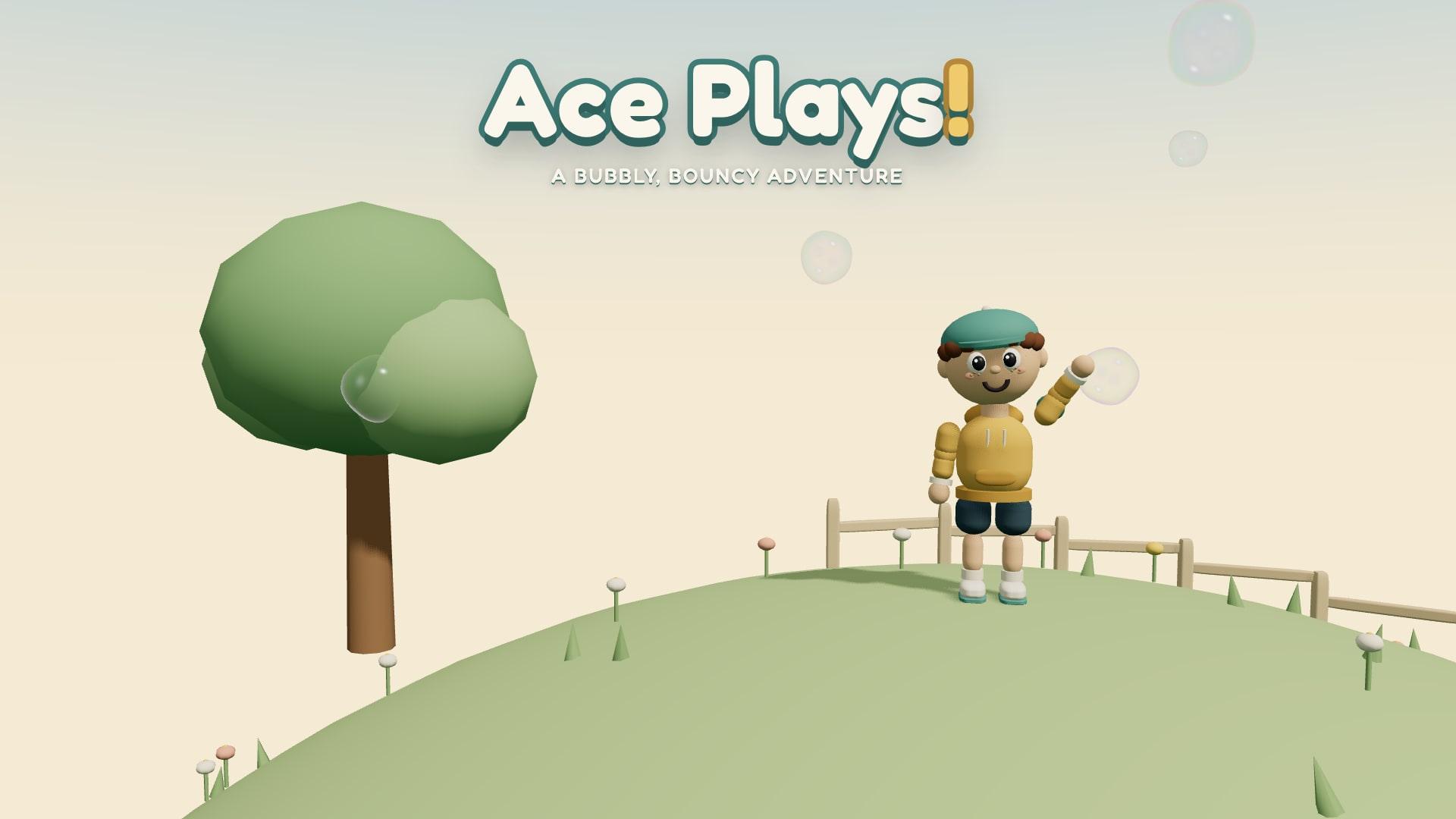
Ace Plays! is a first-person adventure for kids. Ace blows bubbles and launches bouncy balls to help the friends he meets, find hidden treasures and finish each world’s goals.
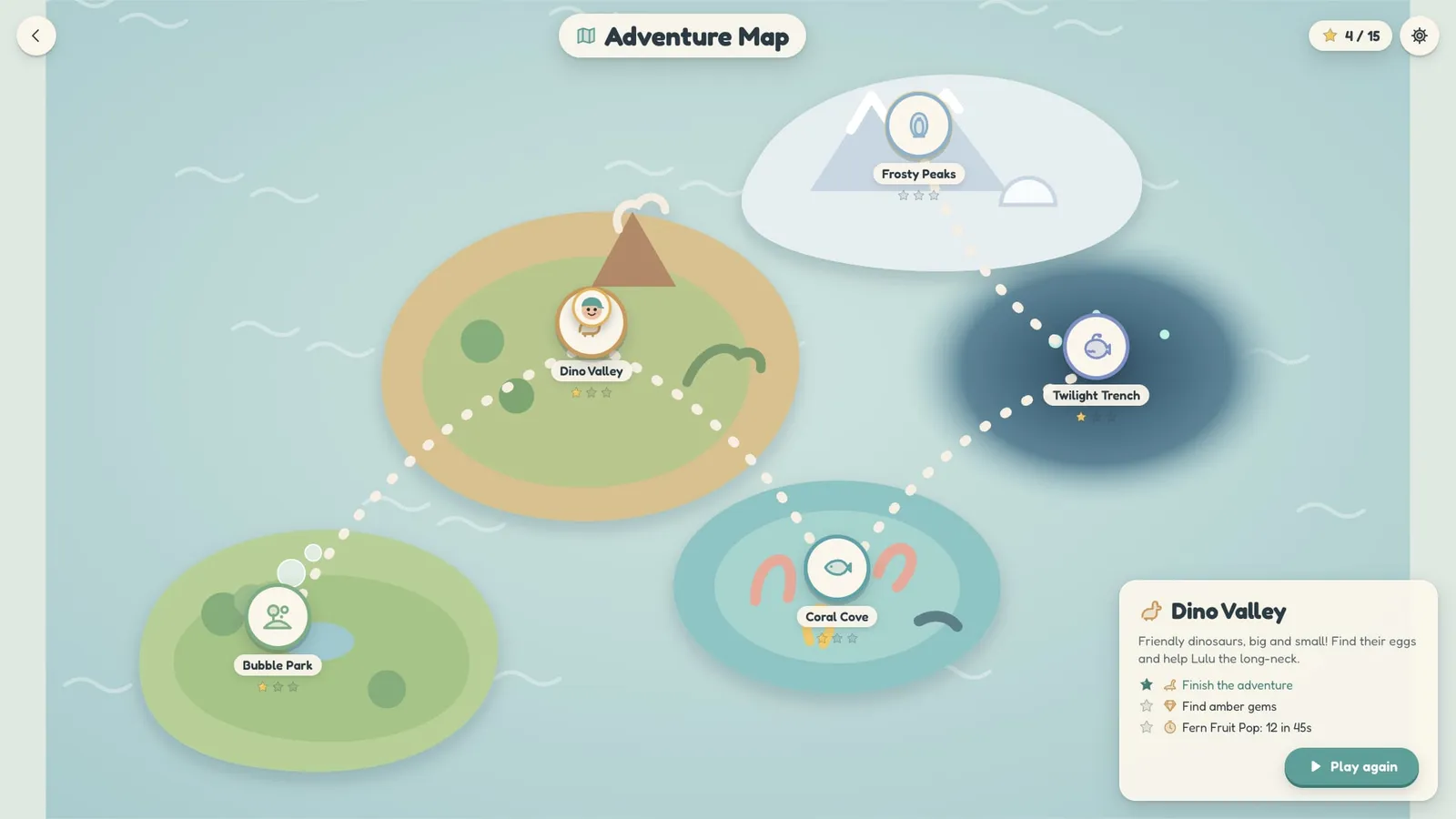
Every world has its own adventure, a treasure hunt and a timed challenge, with a star for each one. Finish a world to open the next one on the Adventure Map.
Five worlds to explore
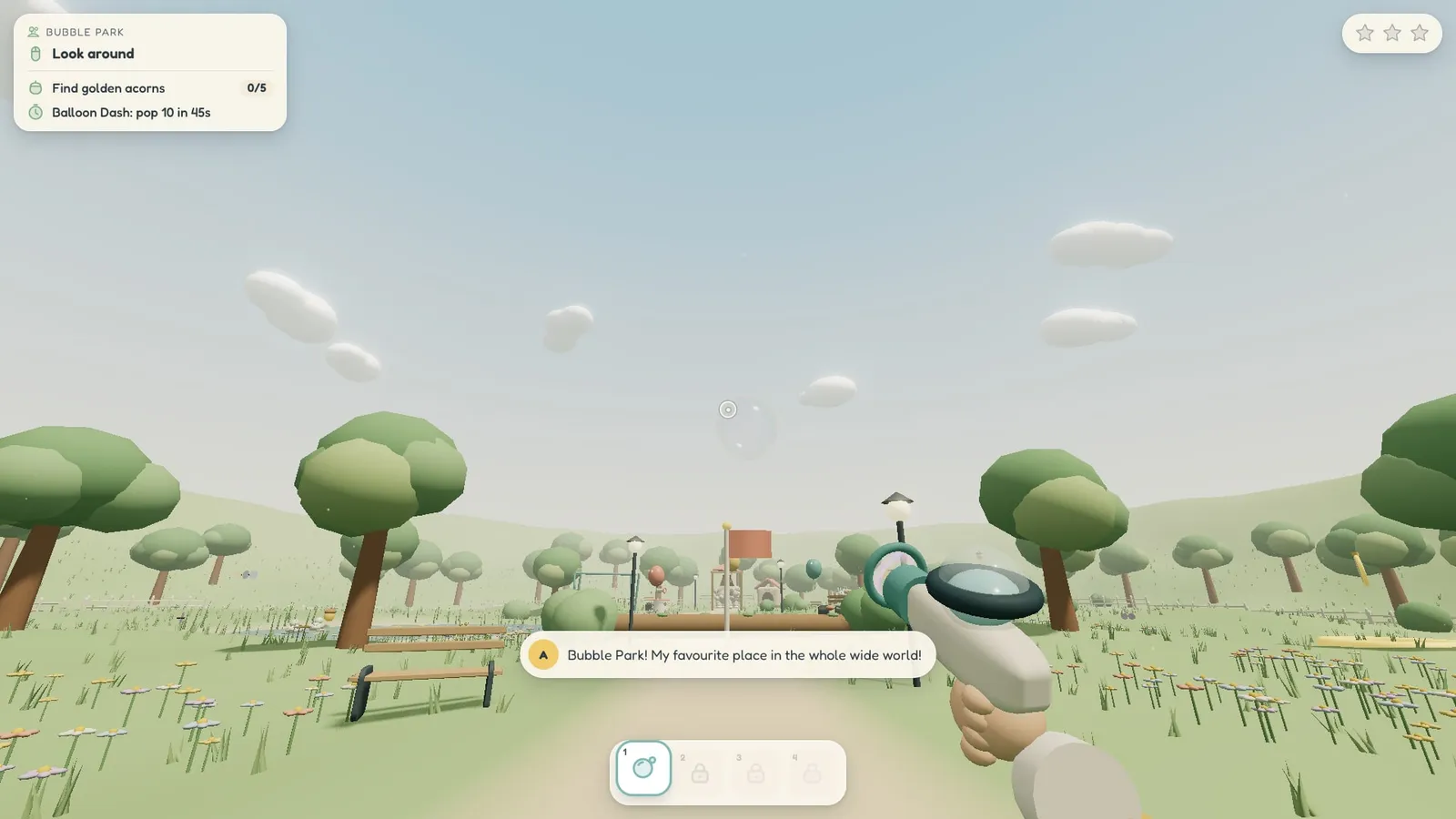
Bubble Park
Learn to bubble and bounce in the sunny park, then play fetch with Biscuit the dog.
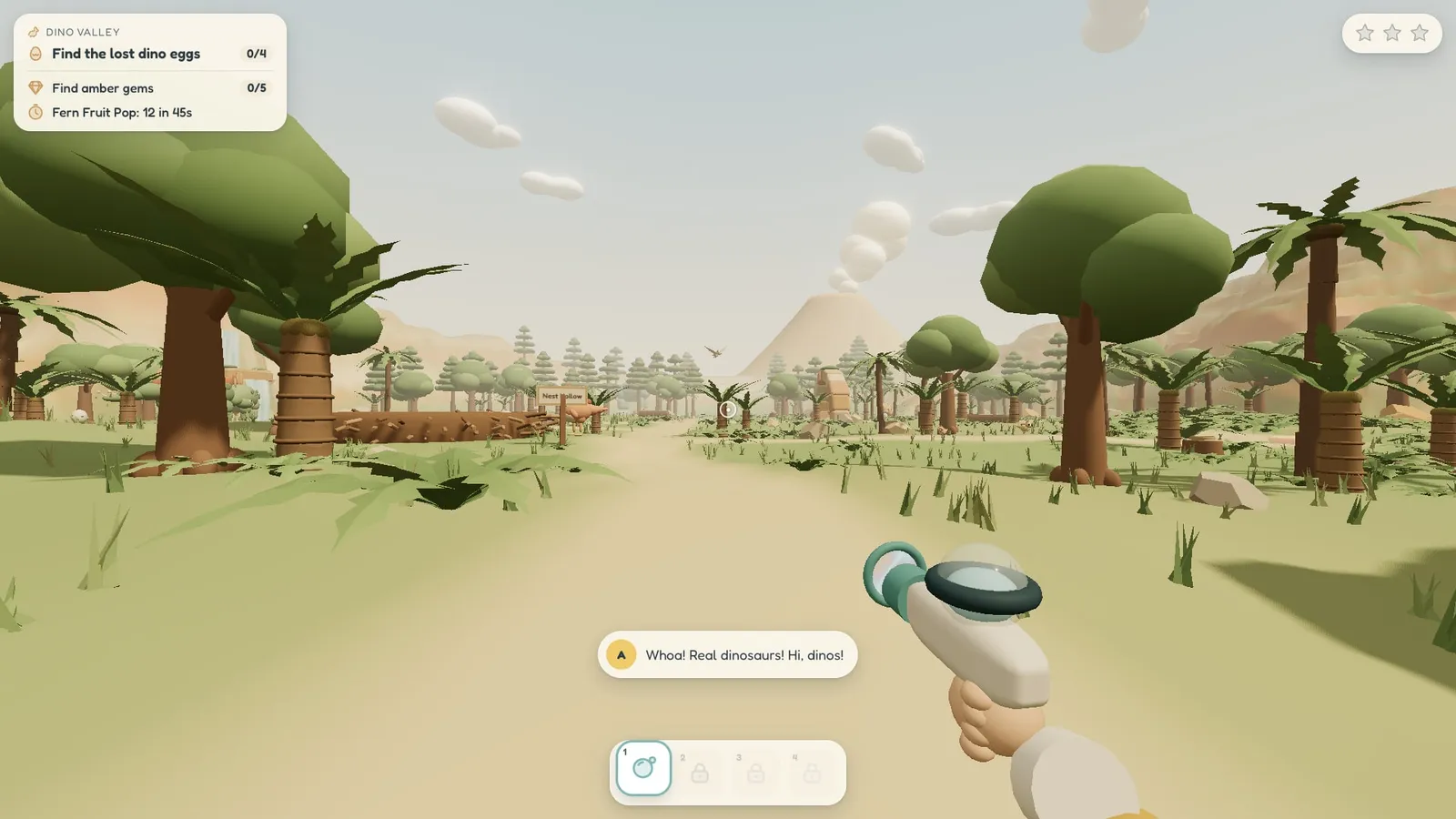
Dino Valley
Friendly dinosaurs, big and small. Find their eggs and help Lulu the long-neck.
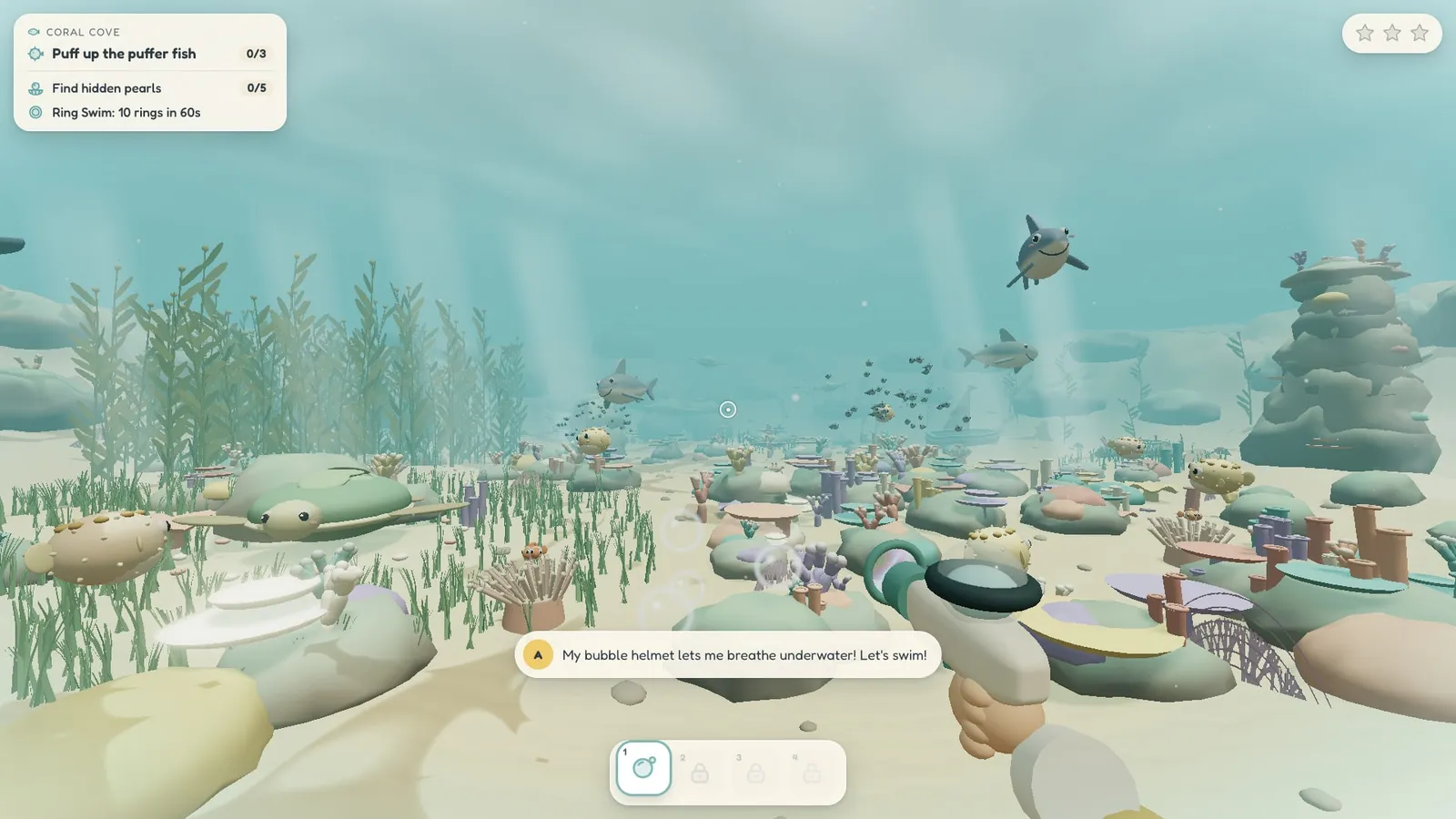
Coral Cove
A sunny lagoon of puffer fish, playful sharks, baby turtles and a singing whale.
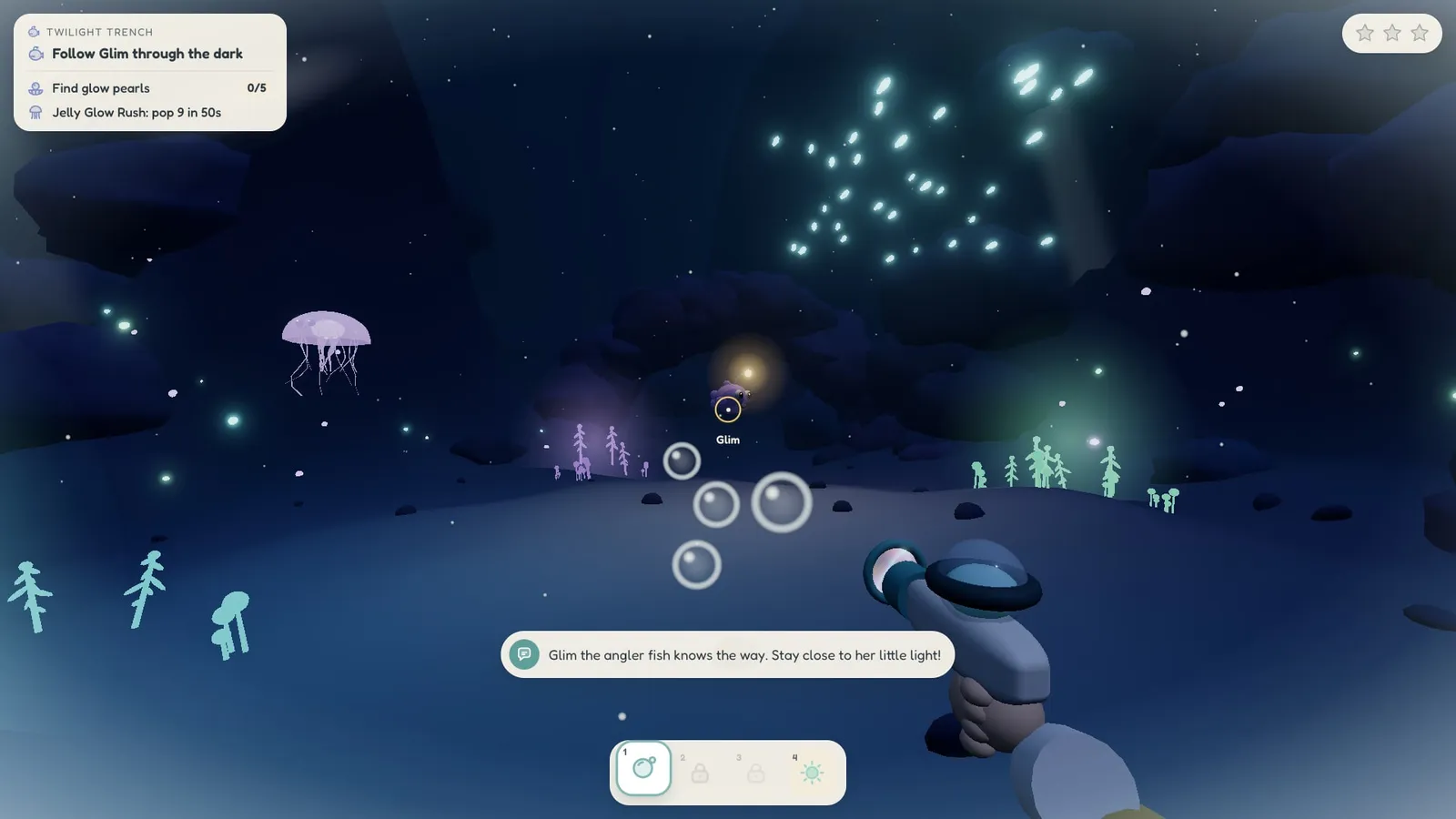
Twilight Trench
Deep down where tiny lights glow. Follow Glim and light up the dark.
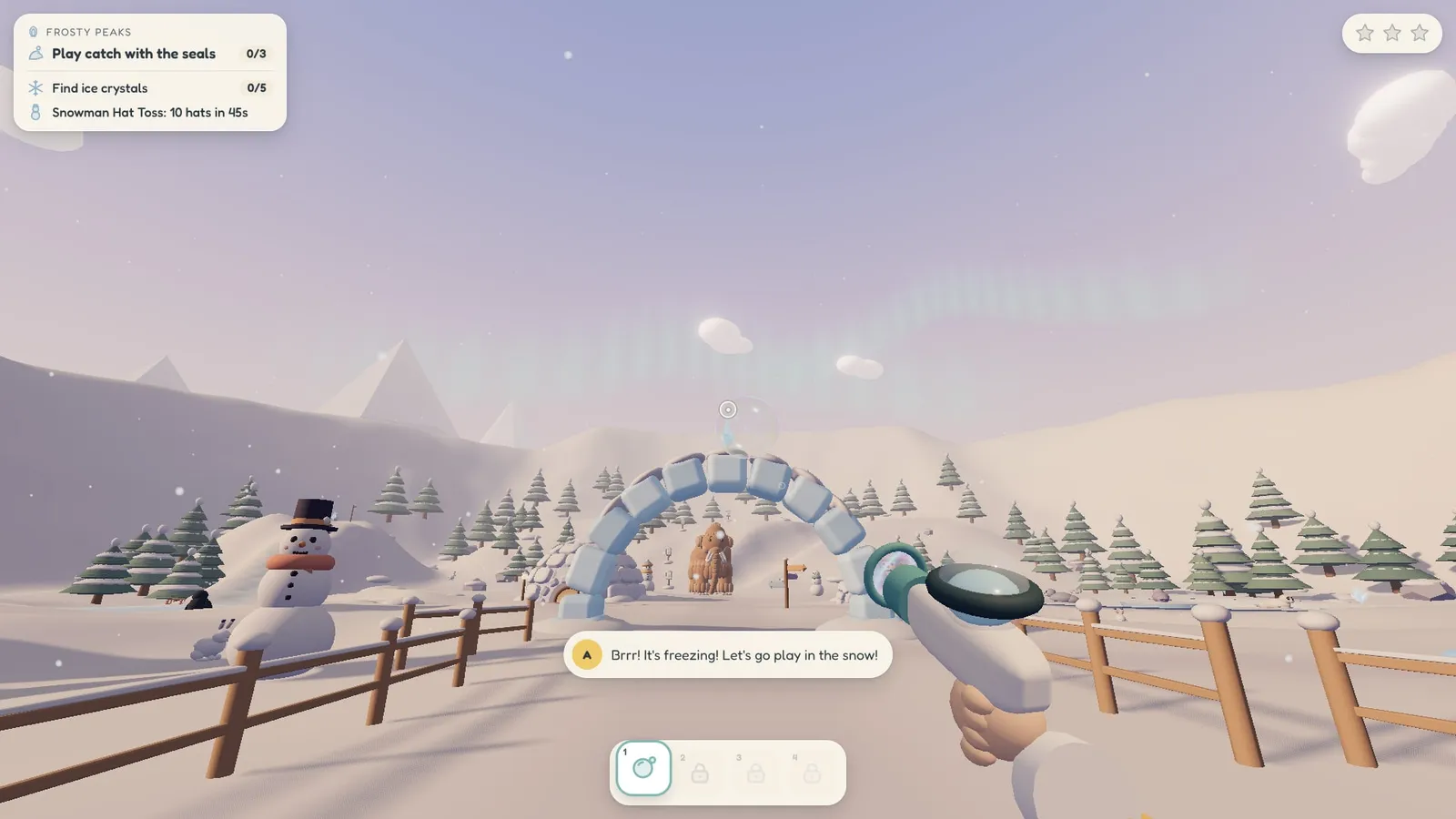
Frosty Peaks
Snowy hills, sliding penguins, playful seals and a great big woolly friend.
How to play
Keyboard and mouse
Mouse
Look around
Click
Blow bubbles or launch balls (hold to keep going)
WASD
Walk (the arrow keys work too)
Space
Jump. Underwater, swim up
ShiftC
Underwater, swim down
1234
Pick a blaster (or Q / E, or the mouse wheel)
EscP
Pause
H
Show or hide hints
Touch screen
Left side
Drag to walk or swim the way Ace is looking
Right side
Drag to look around
Bubble button
Hold to blow bubbles or launch balls, and slide to aim
Jump
Jump. Underwater, swim up
Down
Underwater, swim down
1234
Tap to pick a blaster
Swap
Swap blasters
Pause
Pause
On a phone or tablet, turn it sideways for the best view.
Screenshots
Download Ace Plays! for your computer
Prefer an app? Ace Plays! is also available for Windows, macOS and Linux.
These downloads are for computers. On this phone or tablet, use Play now at the top of the page instead. There is nothing to install.
These apps are not signed with an Apple or Microsoft developer certificate, so your computer will ask you to confirm before it opens Ace Plays! the first time. After that it opens normally.
Windows
If a blue “Windows protected your PC” box appears, choose More info, then Run anyway.
macOS
Drag Ace Plays! into Applications and try to open it. When macOS says it can’t check the app, open System Settings → Privacy & Security, scroll down and choose Open Anyway.
On macOS 14 Sonoma and earlier you can instead right-click (or Control-click) the app, choose Open, then Open again.
Linux
Make the AppImage executable, then double-click it: right-click the file, choose Properties → Permissions and allow it to run as a program. Or in a terminal: chmod +x AcePlays-1.0.1-linux-x86_64.AppImage
If it still won’t start, your system may need FUSE (on Ubuntu, the libfuse2 package).